
Setting Up Phishing-Resistant MFA for Salesforce Using Built-In Authenticators

Author
Jon Duelfer
Setting Up Phishing-Resistant MFA for Salesforce Using Built-In Authenticators
Most Salesforce orgs have MFA turned on. Fewer have it configured in a way that actually stops a determined attacker.
Standard time-based one-time passwords (TOTP) — those six-digit codes from an authenticator app — do add a second factor, but they’re not phishing-resistant. A real-time phishing attack can capture a TOTP code and replay it before it expires. The user types their password and code into a convincing fake login page, and the attacker uses both instantly on the real site. The second factor was bypassed without the user ever knowing.
Phishing-resistant MFA works differently. It uses cryptographic credentials that are bound to the origin — the actual domain — of the site requesting authentication. Even if a user lands on a fake Salesforce login page, the credential won’t work there. It was registered for login.salesforce.com, and nothing else.
Salesforce supports phishing-resistant MFA through two mechanisms: hardware security keys (like YubiKey) and built-in platform authenticators (Touch ID, Face ID, Windows Hello). Both use the FIDO2/WebAuthn standard. This guide focuses on built-in authenticators — the option most users already have on their devices and the easiest to roll out at scale.
Understanding Phishing-Resistant vs. Standard MFA
Before diving into configuration, it helps to understand what makes an MFA method phishing-resistant — and what doesn’t.
| Method | Phishing-Resistant? | Why |
|---|---|---|
| SMS one-time codes | No | Can be intercepted or SIM-swapped; user can be tricked into entering on a fake site |
| TOTP authenticator apps | No | Codes are valid for ~30 seconds — long enough for real-time relay attacks |
| Salesforce Authenticator (push) | No | Push can be approved on a fake login flow; vulnerable to MFA fatigue attacks |
| Hardware security keys (FIDO2) | Yes | Credential is cryptographically bound to the registered origin |
| Built-in authenticators (WebAuthn) | Yes | Same binding — tied to your device and the registered domain |
Built-in authenticators like Face ID, Touch ID, or Windows Hello use your device’s secure enclave to store a private key that never leaves the hardware. When you authenticate, the device signs a challenge from the server. If the origin doesn’t match what was registered, authentication fails — no code to steal, no challenge to replay.
Prerequisites
Before you start:
- You need System Administrator profile or the Manage Multi-Factor Authentication in API and Manage Multi-Factor Authentication in UI permissions.
- Users need devices that support platform authenticators: most modern Macs, iPhones, Android phones, and Windows 10/11 machines qualify.
- MFA must be enforced in your org — either via the MFA requirement for all users introduced in 2022, or through a Login Flow or Permission Set.
Step 1: Verify MFA Is Enforced
Navigate to Setup → Identity → Identity Verification. Confirm that MFA is enabled for your user population. If your org enabled MFA after Salesforce’s 2022 enforcement deadline, this should already be in place.
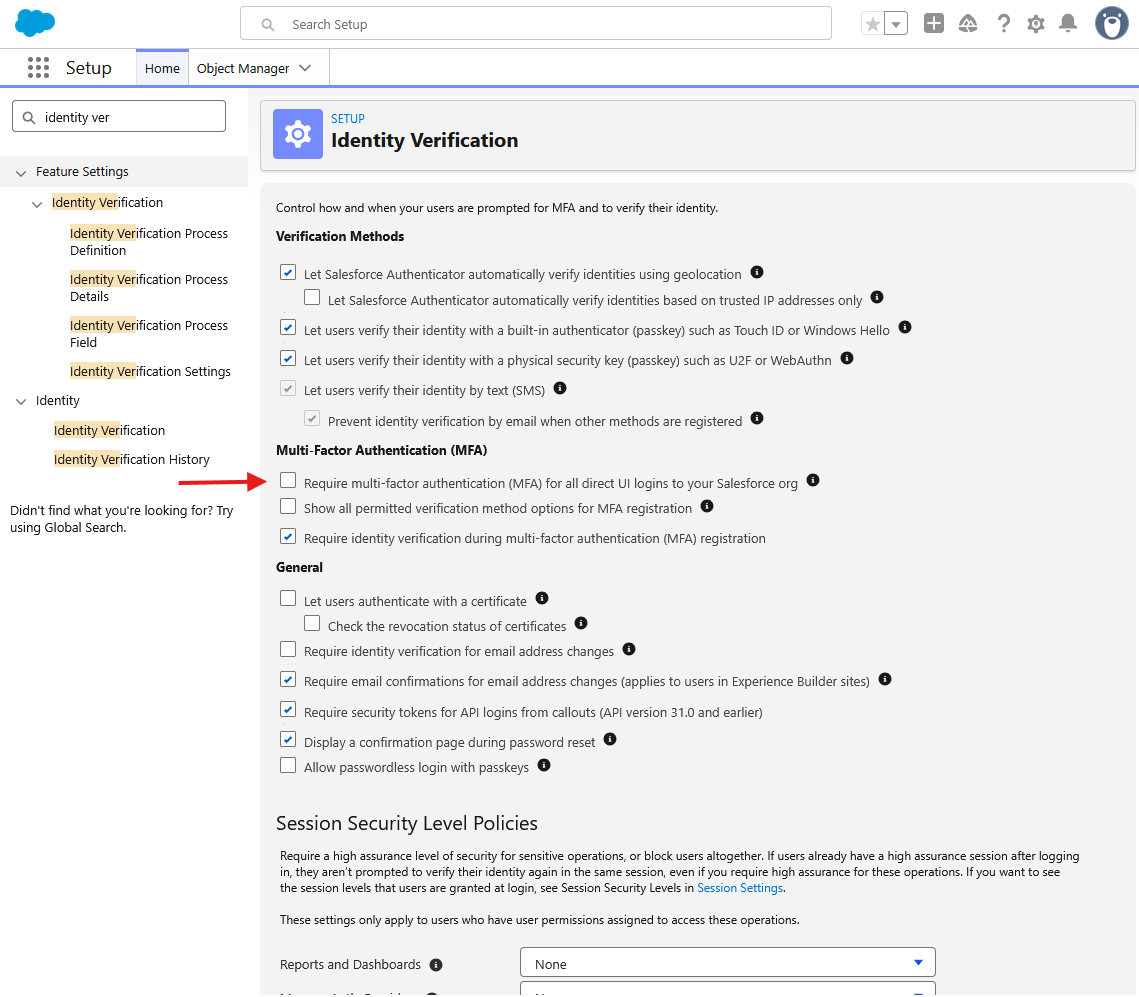
Note: Before restricting methods, make sure your users have had enough time to register a built-in authenticator or security key, or you’ll lock them out of their accounts.
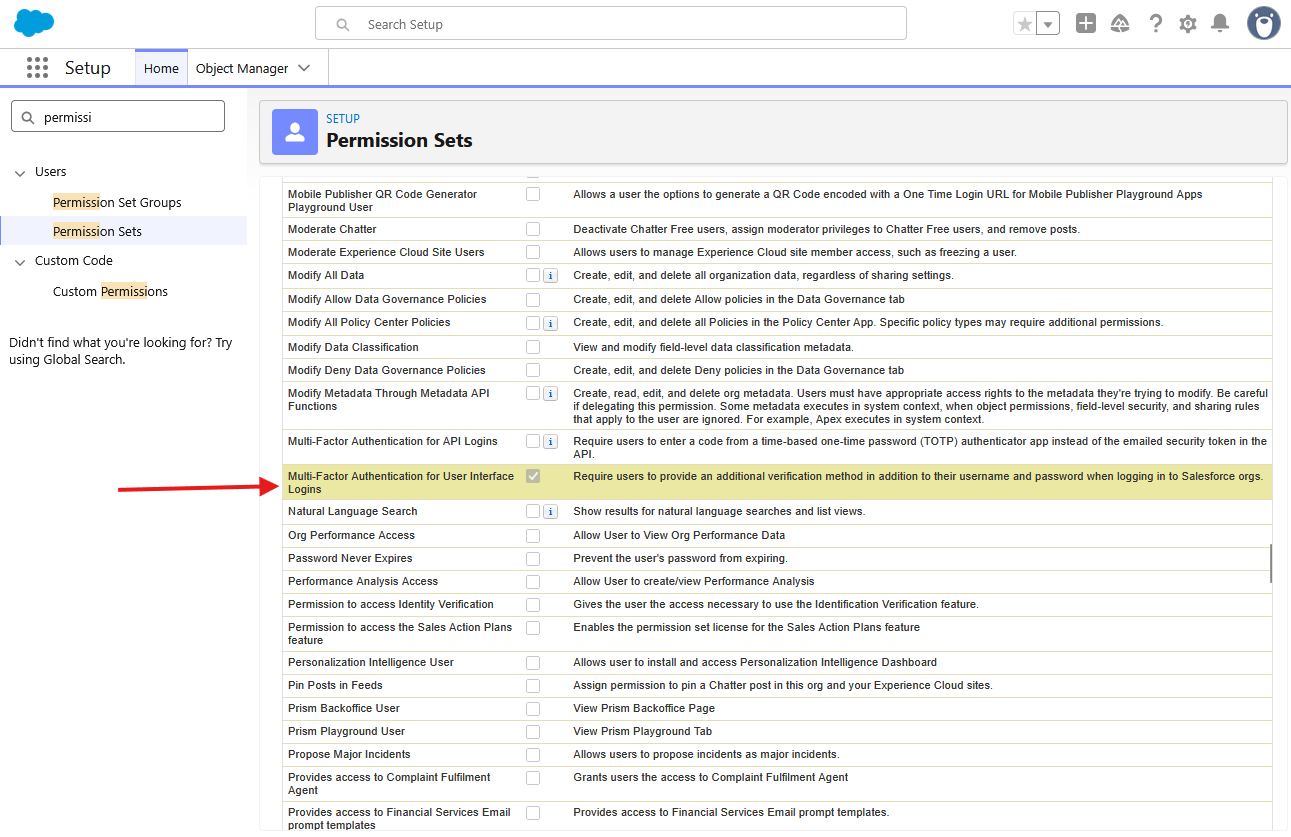
If you’re rolling this out selectively, you can use a Permission Set with the Multi-Factor Authentication for User Interface Logins permission instead of enabling it org-wide — useful for a phased rollout.
Step 2: Enable Built-In Authenticators as a Verification Method
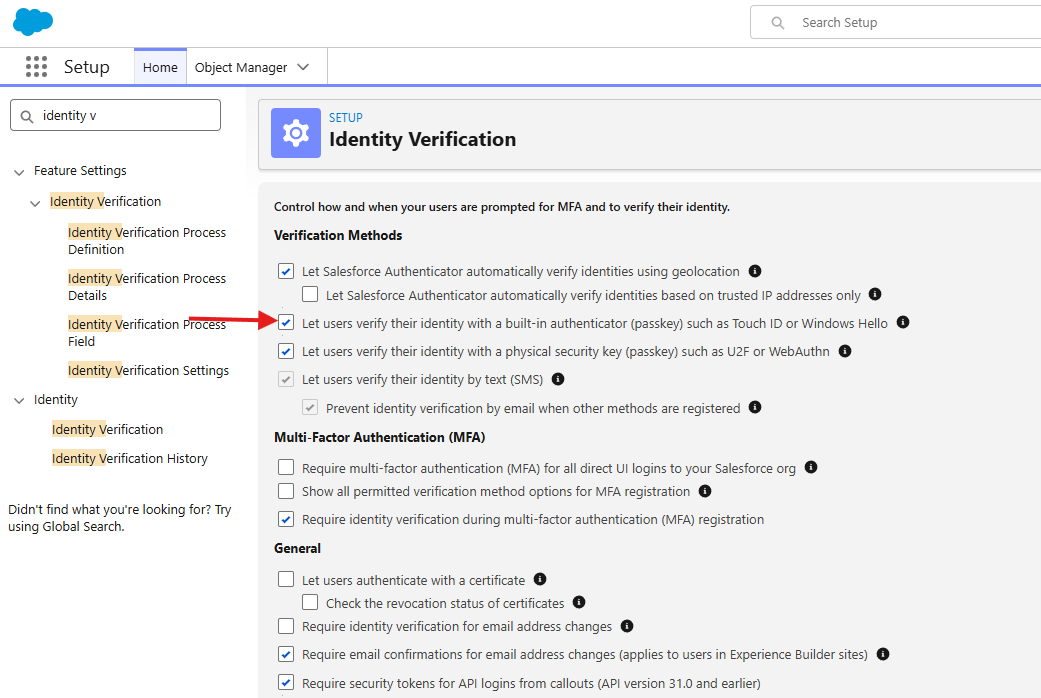
By default, Salesforce allows TOTP authenticator apps and push notifications. To enable built-in authenticators (WebAuthn/FIDO2):
- Go to Setup → Identity → Identity Verification.
- Under Allowed Multi-Factor Authentication (MFA) Methods, ensure Built-In Authenticators is checked.
- Click Save.
Step 3: Users Register Their Built-In Authenticator
Each user registers their own device. This can happen during their next login (if MFA is enforced and they have no method registered) or proactively through My Settings (which is recommended before the June 22 deadline for sandboxes and certainly the July 1st deadline for production logins).
Option A — Self-service via My Settings:
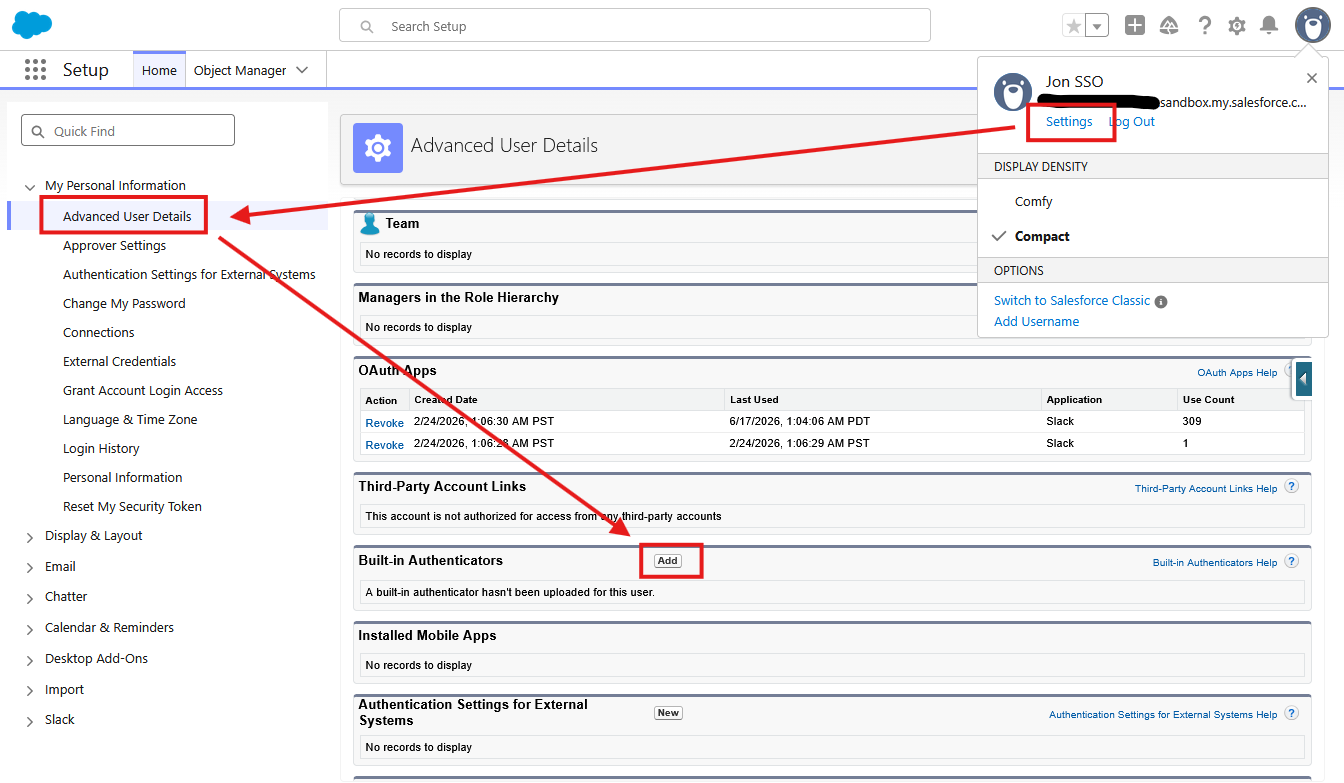
- The user logs in and navigates to My Settings → Personal → Advanced User Details.
- Under the App Registration: Built-In Authenticators section, click Add.
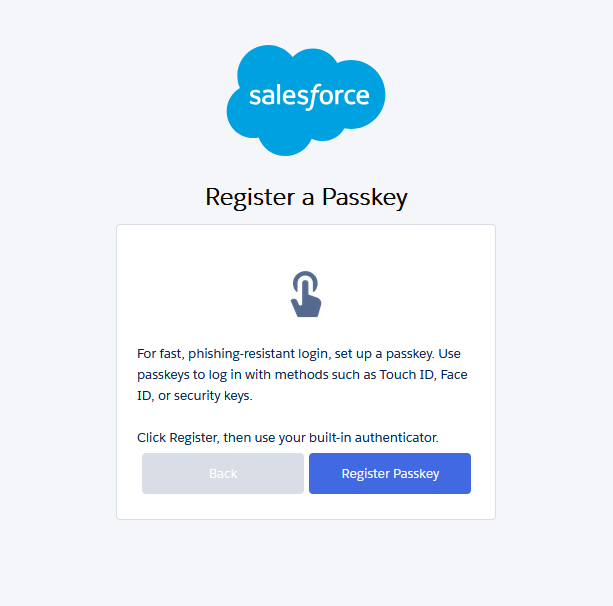
- You’ll be prompted to Register Passkey
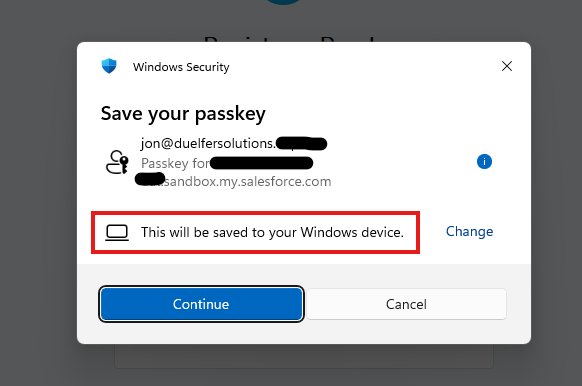
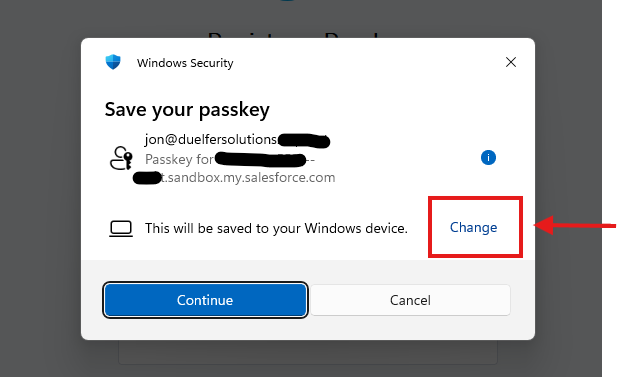
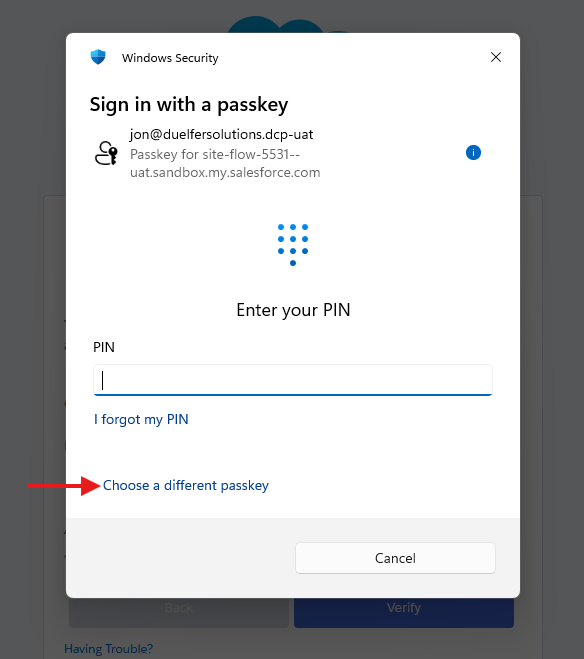
- The browser prompts for biometric verification (Face ID, Touch ID, or Windows Hello depending on the device). On Windows 11, it’ll look like the following (critically, note how it says that it’ll be saved to your Windows device, we’ll comment on that in the next section):
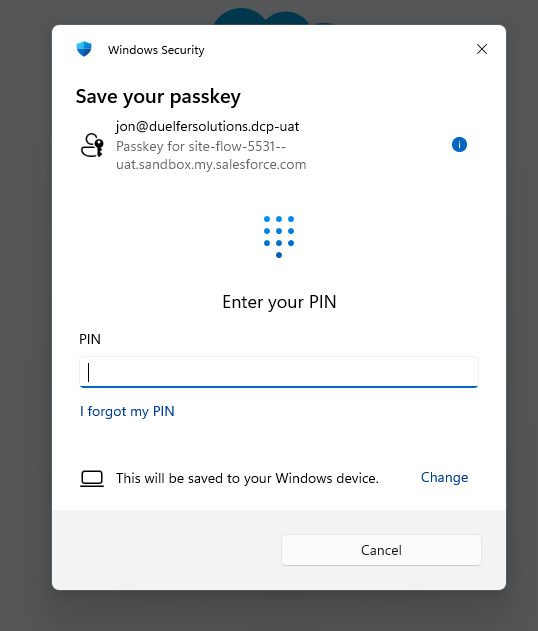
- The user completes the prompt (in this case, it’s a PIN but certainly could be a biometric prompt depending on your device setup). Salesforce stores the public key credential.
- Finally, click Verify to complete the fow.
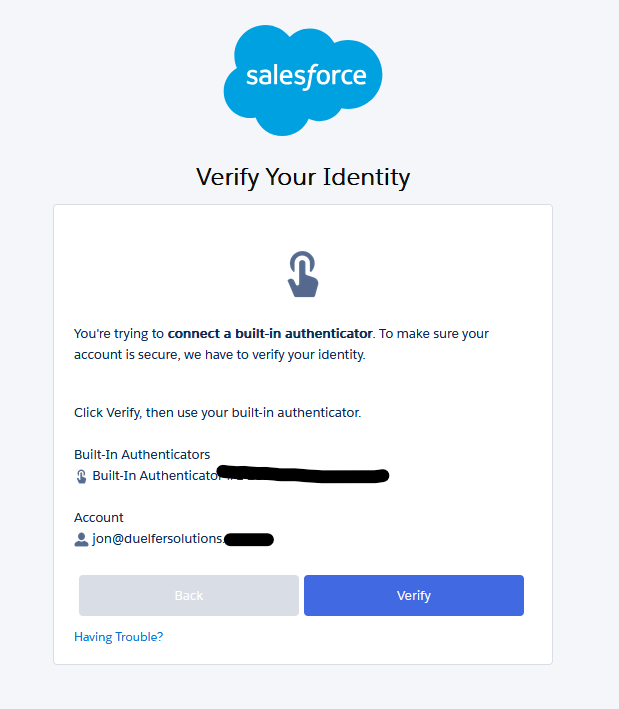
*HIGHLY RECOMMENDED — Register an additional Passkey for your Phone! If you’re like me, you have multiple devices (desktop, laptop, etc.) and may need to sign into your Salesforce account from different devices. You can also register a passkey for your phone, and then choose that option when logging in from a different device.
- Repeat the process described above via My Settings
- When you reach the Save your passkey screen, click Change in the bottom prompt.
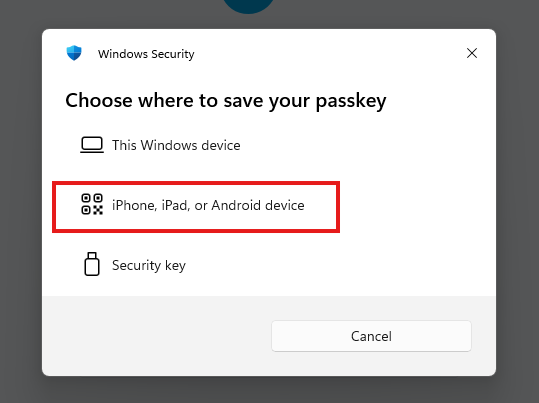
- Choose **iPhone, iPad, or Android device.
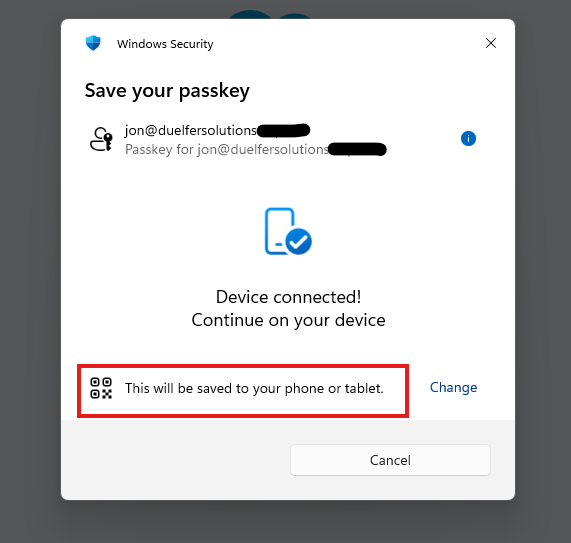
- You’ll be prompted to scan a QR code with your phone, enter your phone’s passcode (or biometric prompt).
- Next time you login in, you should see both registered.
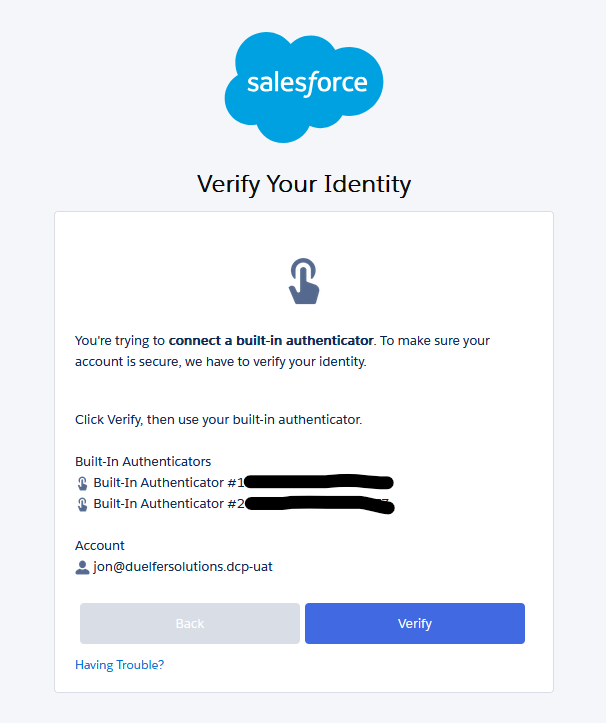
- Your device’s passkey will be the default, but you can select Choose a different passkey and select your phone at any time!
Option B — Prompted during login:
If a user has MFA enforced but no method registered, they’ll be prompted to register one at their next login. The flow walks them through the same WebAuthn registration ceremony automatically. I don’t recommend this option so you don’t get accidentally locked
Managing Lost or Replaced Devices
Built-in authenticators are device-bound, which means a new phone or laptop requires re-registration. Plan for this before rollout:
- Encourage users to register multiple devices — a laptop and a phone, for example. Salesforce supports multiple registered authenticators per user.
- Set up a recovery path: ensure users have an admin contact for disconnecting old credentials so they aren’t locked out when hardware changes.
- Admins should register security keys as a backup, since hardware keys are portable across devices.
If a user is locked out entirely (lost device, no backup method), an admin can go to Setup → Users, open the user record, and use Del or Disconnect on all registered methods. The user will register fresh on next login — but confirm their identity through another channel before doing so.
A Note on Security Keys
Hardware security keys (YubiKey, Google Titan, etc.) use the same FIDO2 standard as built-in authenticators. They’re useful for:
- Shared workstations where biometrics aren’t enrolled
- Users who want a portable credential independent of device changes
- Administrators who need a recovery method that doesn’t rely on a specific device
Setup for security keys follows the same path — My Settings → Advanced User Details → App Registration: Security Keys — and behaves identically from a phishing-resistance standpoint.
Summary
Phishing-resistant MFA closes the gap that TOTP and push notifications leave open. The setup is straightforward, the user experience is faster than typing a six-digit code, and the underlying FIDO2 standard is battle-tested. For most Salesforce users, their device already supports it — the friction is in the rollout planning, not the technology.
The steps are:
- Confirm MFA is enforced.
- Enable Built-In Authenticators in Identity Verification settings.
- Have users register via My Settings → Advanced User Details.
- Verify registrations in the user record.
- Plan for device transitions with multiple registered authenticators.
- Optionally, disable non-phishing-resistant methods for maximum protection.
If your org handles sensitive constituent data, financial records, or anything worth stealing, this upgrade is worth the afternoon it takes to roll out.
Questions about securing your Salesforce org or rolling out phishing-resistant MFA for your team? Reach out to us — we’re happy to help.